

 Tutorials
 Sport
Sport
 Photo gallery
 Classic design
General configuration of the blog design
In PrestaBlog, design customization is designed to be durable and compatible with module updates.
It is strongly recommended to use the configuration options provided for this purpose rather than directly modifying or overriding templates or CSS files. Template overrides complicate future updates, require comparing files after each module evolution, and are a frequent source of malfunctions.
The Configuration > Design section allows you to adjust the blog's appearance while maintaining a clean and scalable structure.
It mainly relies on two elements:
- color settings for different blog elements
- custom CSS rules, which allow you to add styles without impacting module files
Color settings allow you to visually refine:
- the blog menu
- pagination
- category listings
- article content
- block content
These settings only concern the visual aspect (colors, backgrounds, hovers) and apply globally.
Reminder about category configuration
Category configuration allows you to adjust many display settings related to content (title, description, author, date...). These settings don't directly affect colors but influence the final blog rendering.
Visual Markers
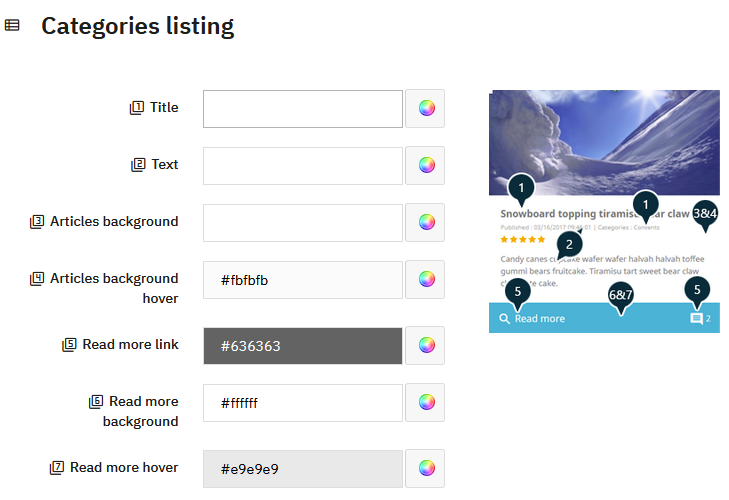
For some more complex elements, PrestaBlog displays an explanatory image next to the configuration fields. These images serve as visual markers to quickly understand which part of the display corresponds to each color field.
- each configuration field is associated with a number
- this number is displayed next to the field
- the same number appears on the preview image
- the visual marker allows you to precisely identify the graphic element concerned
This system allows you to adjust the design in a clear and intuitive way, without modifying the code or risking conflicts during updates.
Custom CSS
PrestaBlog provides a custom CSS field allowing you to add personalized CSS rules without modifying module or theme files.
Rules added via this field are preserved during PrestaBlog updates. This is the recommended method for making CSS adjustments specific to the blog.
After any modification to custom CSS, it is important to take cache management into account. Browsers can keep stylesheets in cache, which sometimes prevents seeing changes immediately.
To force browser cache reload:
- on Windows:
CTRL + SHIFT + R - on macOS:
CMD + SHIFT + R
If changes are not visible, it may be necessary to clear the PrestaShop cache or temporarily disable CSS minification to verify the rendering. Go to advanced parameters > performances.
Customize category display
The appearance of your categories can be adjusted at two distinct levels, which offers great flexibility depending on whether you want global consistency or specific staging for each category.
Global options in the configuration
The Article list display settings section groups together all settings that apply to all your categories by default: number of articles per page, display of the cover image, summary, date, author, etc. This is the logical starting point for defining a consistent display guideline across your entire blog.
Per-category customization
To go further, each category has its own display options, accessible directly from creating or editing a category. This allows you, category by category, to override global settings: choose a different layout, show or hide certain elements, or define a specific cover image.
This two-level approach — global then local — allows you to efficiently manage a blog with many categories with distinct visual identities.
What about the theme?
The blog display is also influenced by the layout chosen in the theme settings: number of columns, content width, presence of a sidebar… These settings interact directly with how your categories look. Consider reviewing them if you want to adjust the overall structure of your blog.
Share this content